Exporting Leads
Exporting Leads
If you need a backup of your leads or want to use them elsewhere, you can export your leads from QuickMail in just a few steps.
In this article:
How to export leads?
What do I do if I didn't receive the email?
How to Export Leads?
Go to Leads → select the leads → click Export.
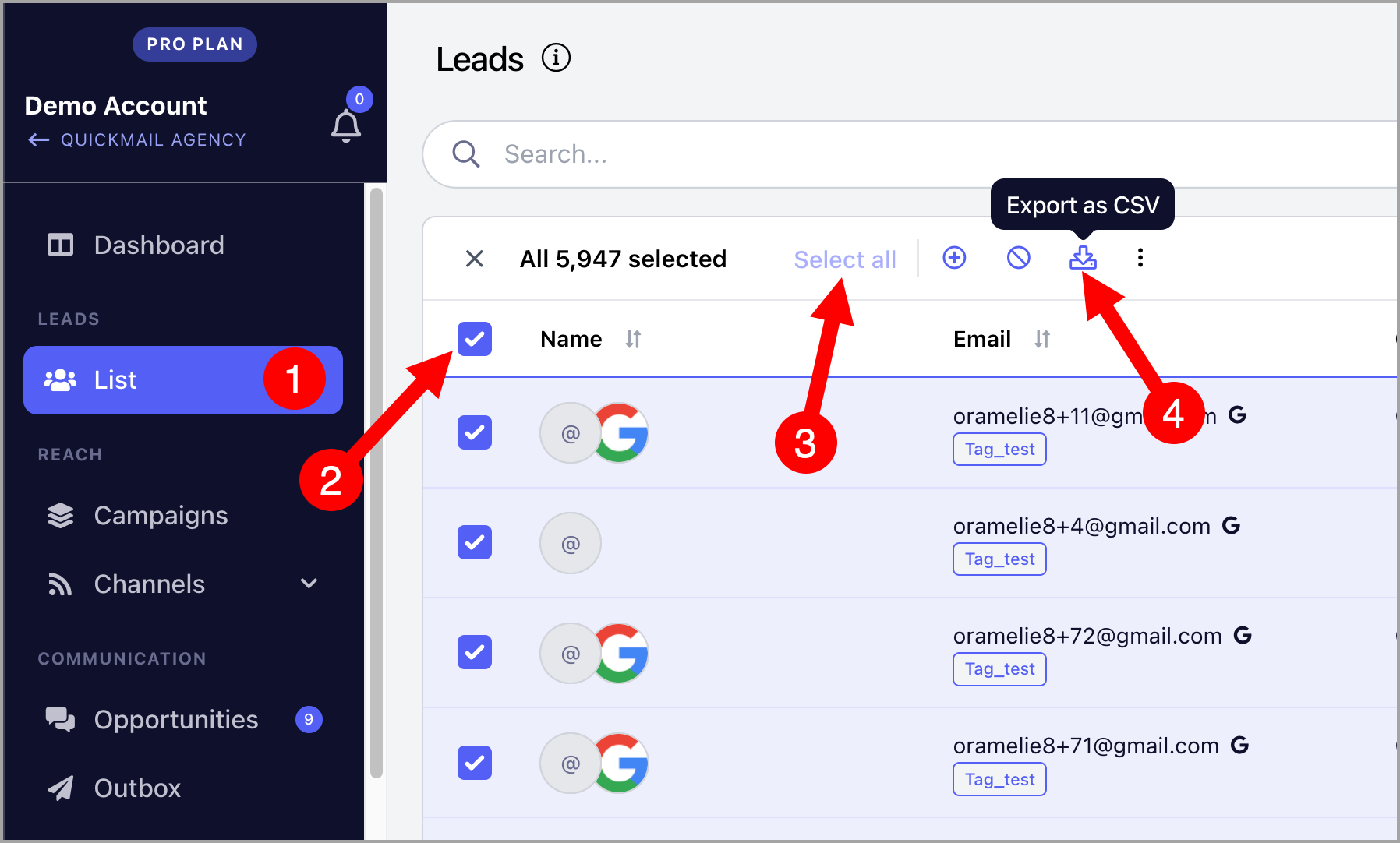
After the export, a CSV file will be sent to the email address you use to log in.
Note: You can use filters to narrow down the leads you would like to export.
Troubleshooting: What Do I Do if I Didn't Receive the Export Email?
If you didn't receive the email containing your CSV export, you can still download the exported file from your account's Changelog.
Get the export from the Changelog
Go to Settings → Team → ⋯ → Changelog.
Find the export event in the Changelog and click the download link to access your exported file.
You do not need to receive the export email to access the file. The download link is also available in the Changelog.
Why didn't I receive the email?
Export emails may not be delivered if your email address has been added to the suppression list. This can happen if QuickMail notification emails sent to your address have bounced more than once.
The email may also have been delivered to your spam, junk, or another email folder.
If you still can't find the email, check the Changelog first to access your export directly.