Webhooks
Webhooks
Using QuickMail webhooks makes it easy to fetch data from the workspaces under your organization and consolidate it.
Note: Webhooks are only available to accounts on the Agency Plan.
Here are the available webhook events:
First open
Repeat open
First click
Repeat click
First reply
Repeat reply
Bounce
Unsubscribe
Lead tagging
Task completed
Journey completed
Journey checkpoint
Opportunity status
How Does It Work?
Whenever an event occurs in a QuickMail workspace where a webhook is enabled, QuickMail sends all the information about that event to your webhook provider, such as Zapier, N8N, Make.com.
You can then use this information to automate workflows and perform actions such as recording data in a Google Sheet or sending it to another app.
How to Set It Up?
Step 1: Get the Webhook Endpoint URL
Go to your preferred webhook-enabled automation platform and get the webhook endpoint URL.
In the screenshot below, I'm using Zapier as an example.
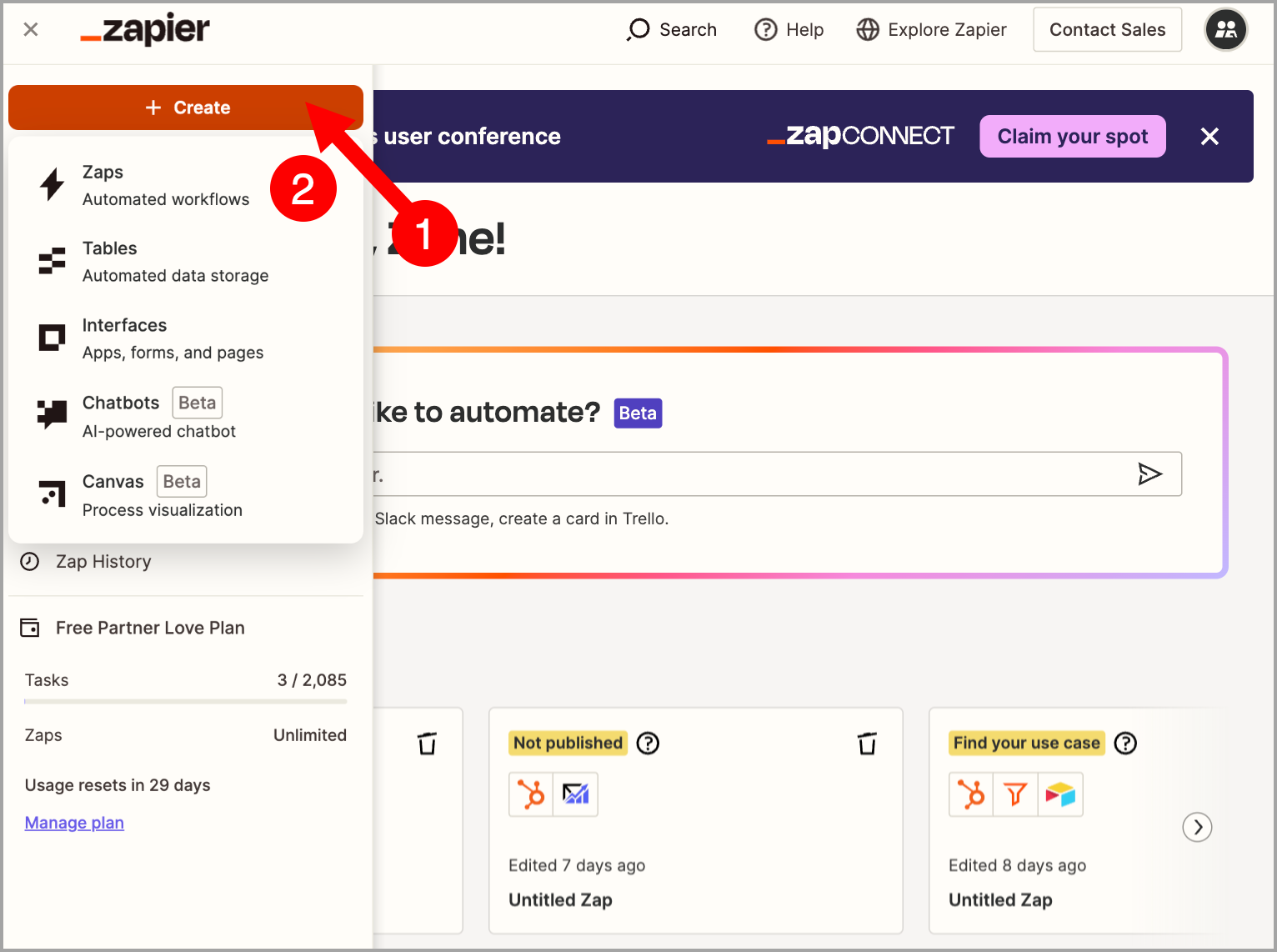
In Zapier, select Webhook by Zapier as the trigger → under Event, select Catch Hook → click Continue.
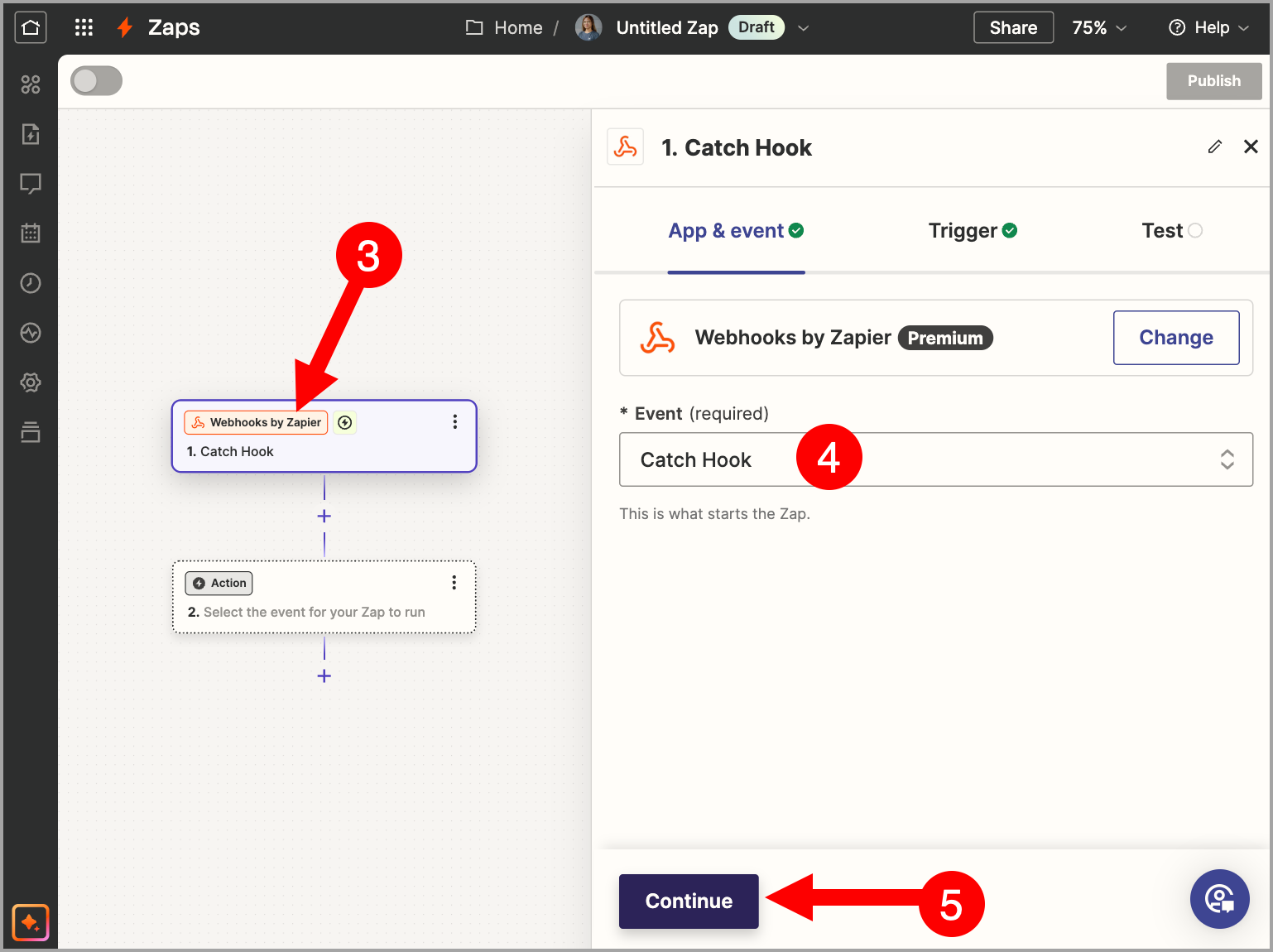
Click Continue again → copy the webhook endpoint URL.
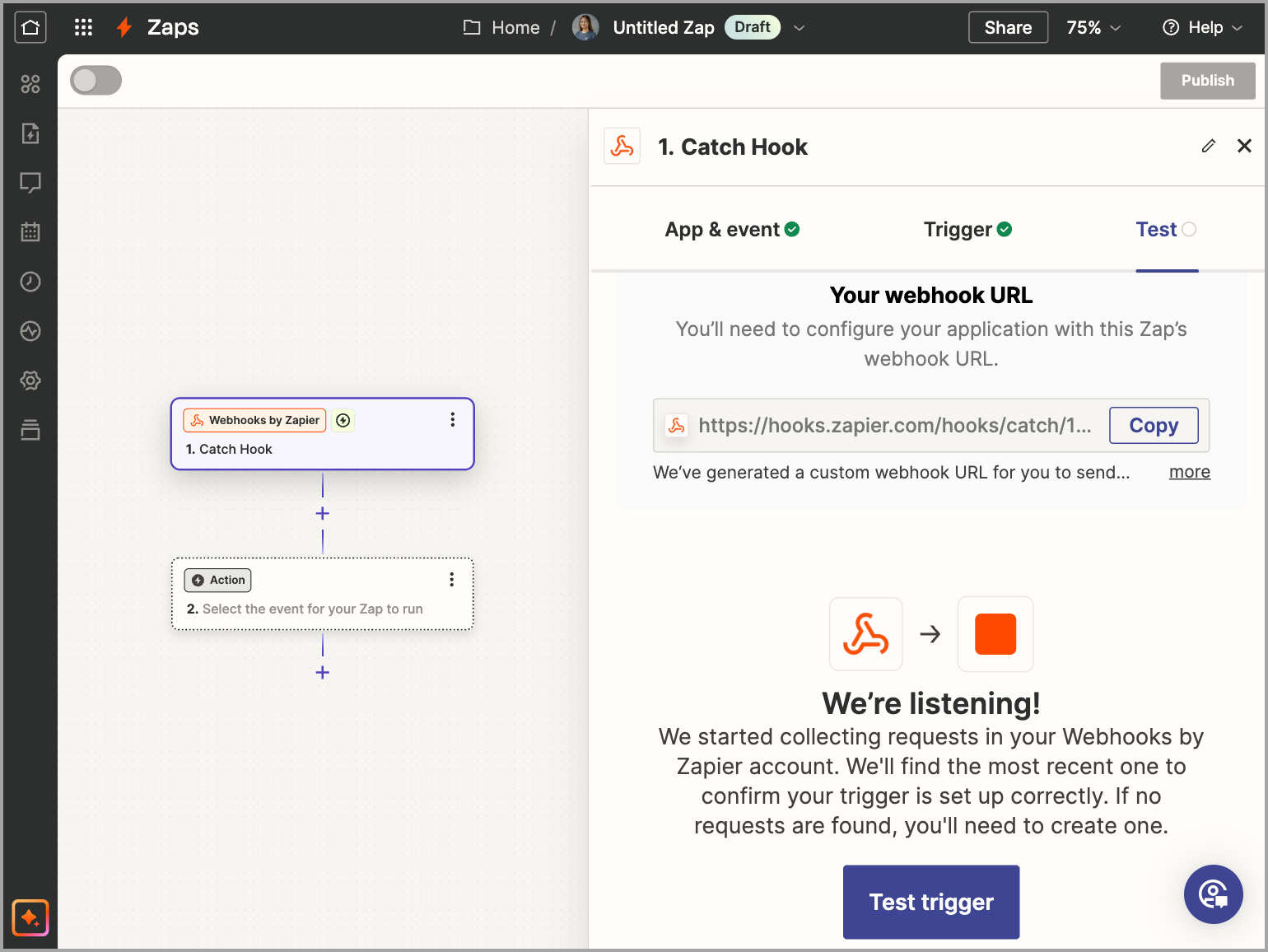
Step 2: Add the Webhook Endpoint URL to QuickMail
Go to the Organization Dashboard by clicking the organization name in the upper left corner of the workspace.
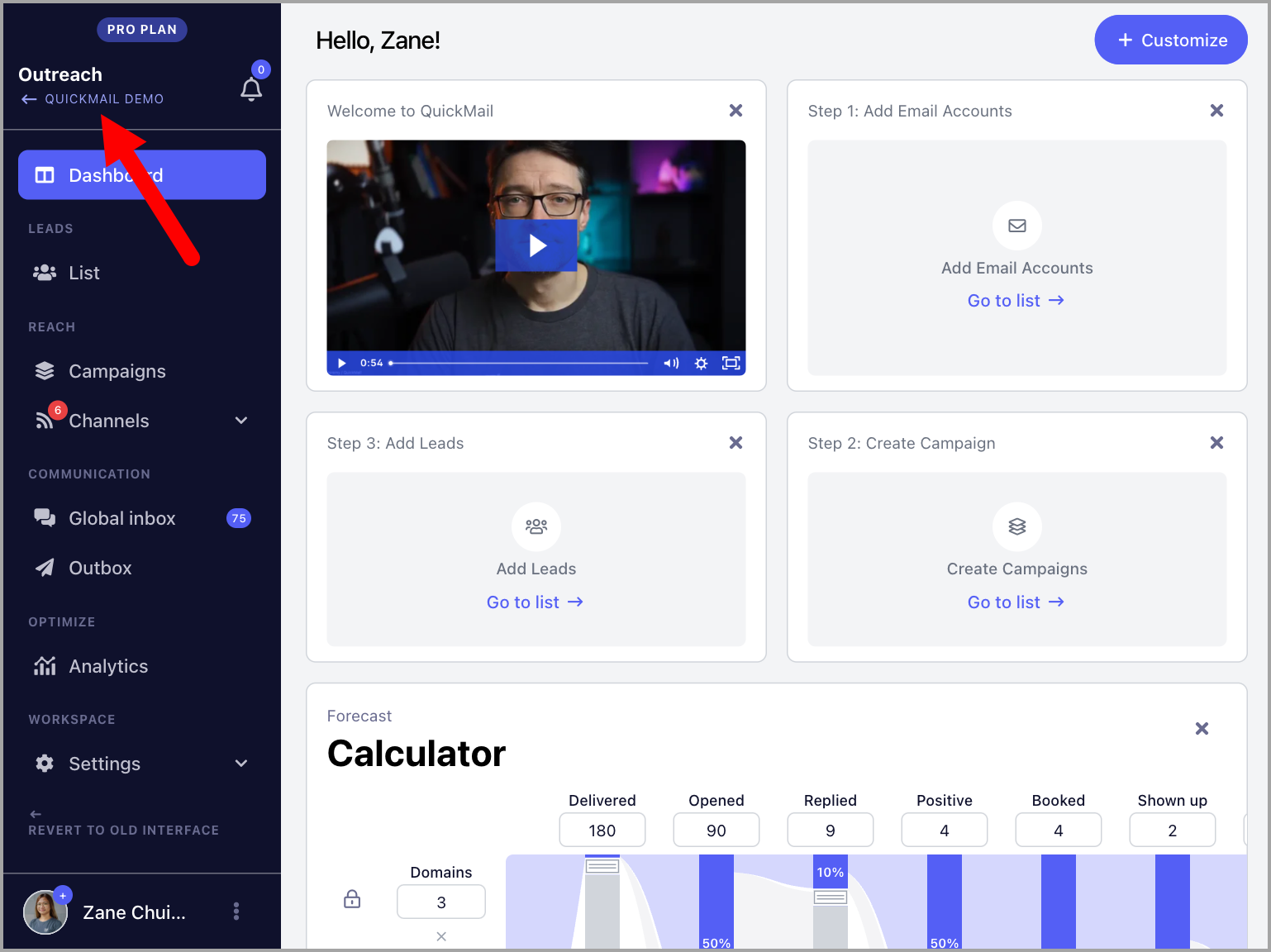
Note: If you don't see the option to access the Organization Dashboard, it means your account isn't on the Agency plan. To use webhooks, you'll need to upgrade to the $299/month Agency plan.
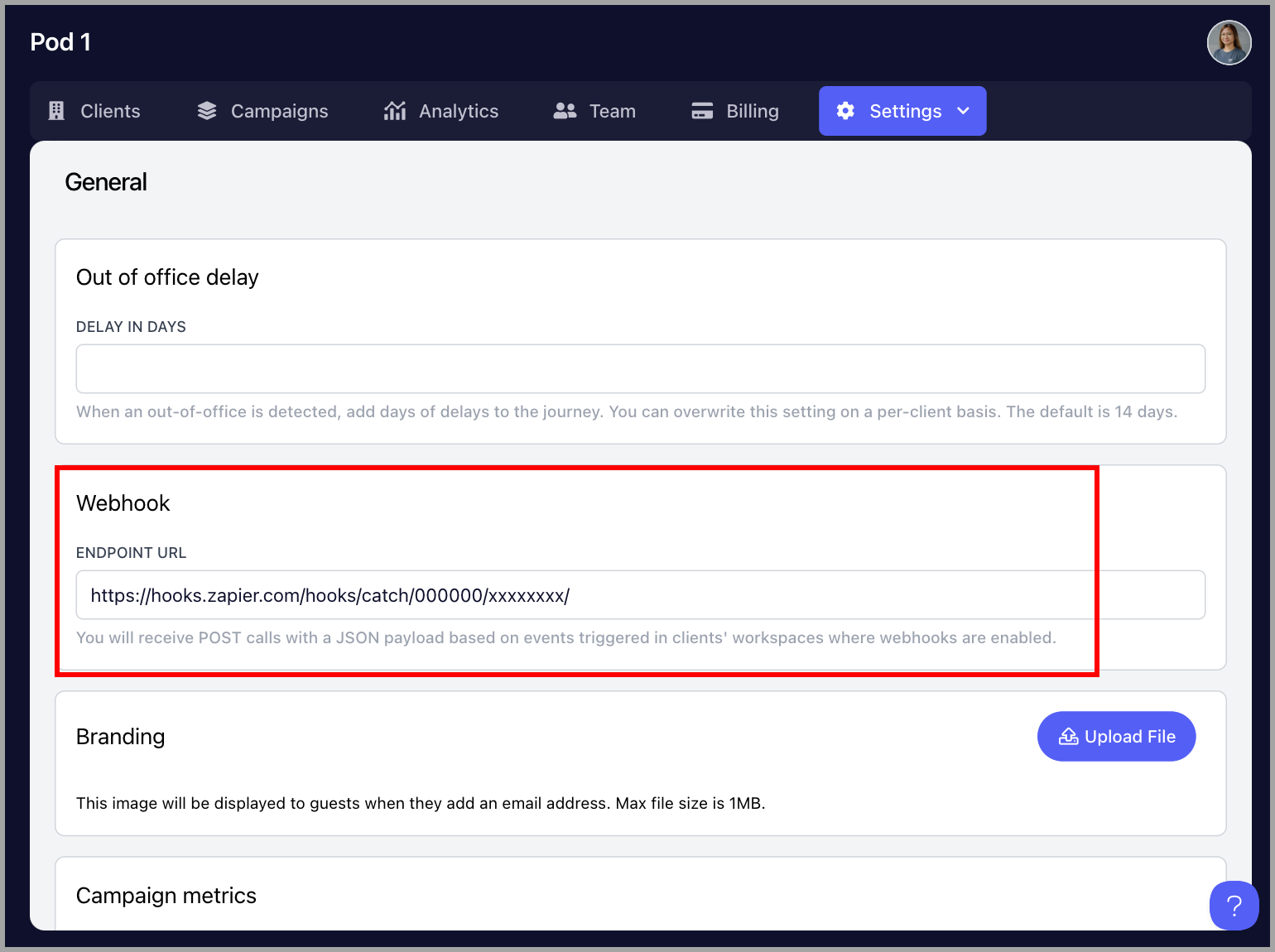
Go to the Settings tab → Webhooks → paste the webhook endpoint URL.
Step 3: Enable Webhooks
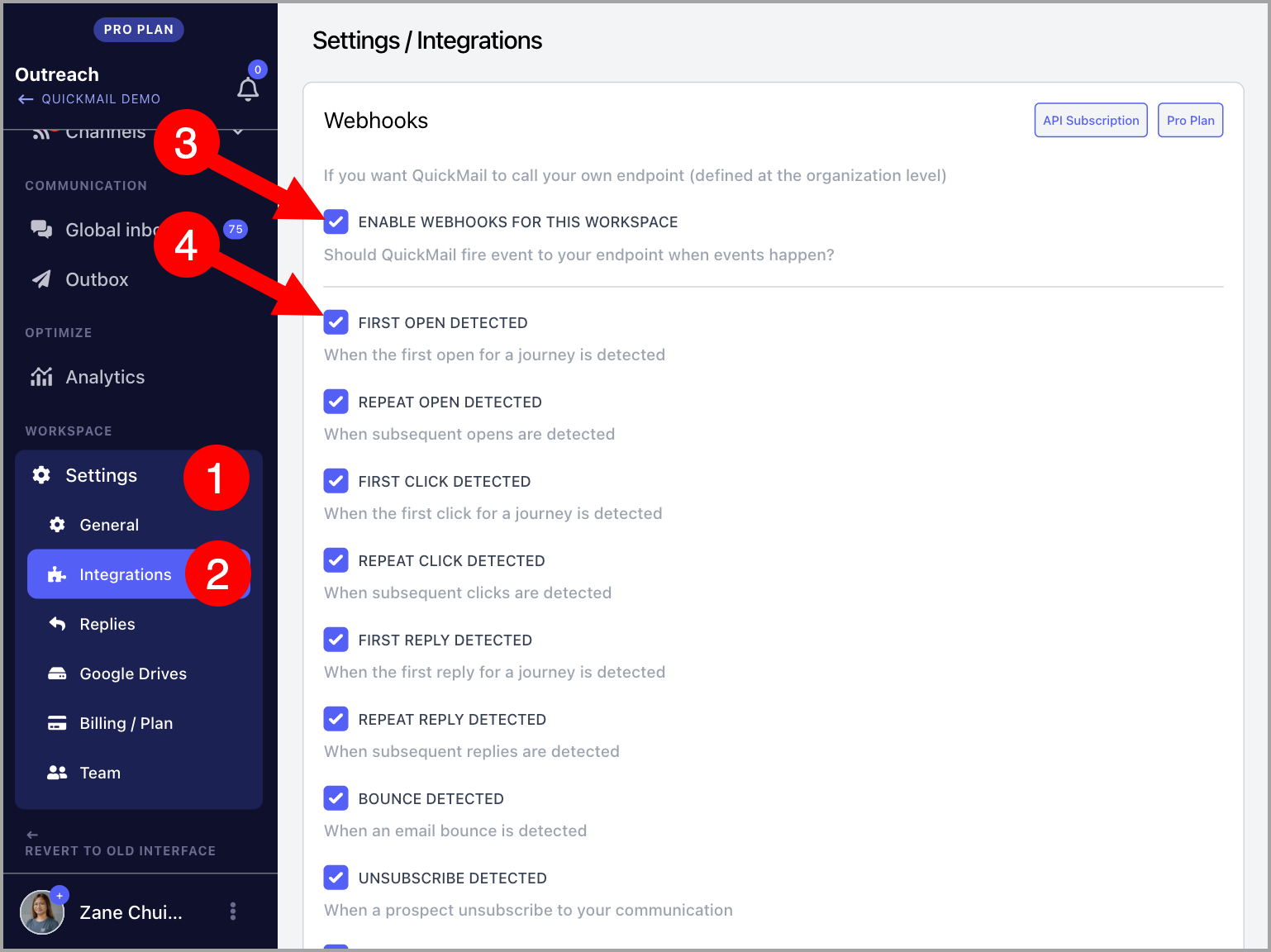
Go to the specific workspace → Settings → Integrations → enable Webhooks → select your preferred triggers.
Step 4: Complete Your Workflow
Go back to your webhook provider to complete the workflow and set it live.
Commonly Asked Questions:
What's the difference between webhooks and webhook steps? Webhooks send data automatically whenever an event happens, like an open, reply, bounce, or unsubscribe. You set them up once in your settings, and they work across all your campaigns.
Webhook steps are added inside a campaign, just like an email step. They only send data when a lead reaches that step in the sequence, so they can't be triggered by events like opens, clicks, bounces, or unsubscribes.
Which plans include webhooks? Webhooks are only available on the Agency plan.
What information is included in the payload? Here's a sample payload:
{
  "event_name": "reply",
  "account.id": 13,
  "prospect.id": "136132",
  "prospect.first_name": "O",
  "prospect.last_name": "b",
  "prospect.full_name": "O b",
  "prospect.email": "aw.replyfrom.qm@gmail.com",
  "prospect.title": "",
  "prospect.role": "",
  "prospect.phone": "",
  "prospect.score": "0",
  "prospect.custom.att9": "",
  "prospect.custom.common-name": "",
  "prospect.unsubscribed": false,
  "prospect.verified_source": null,
  "prospect.tag.common-name": false,
  "prospect.tag.enum12": false,
  "prospect.tag.enum2": false,
  "prospect.tag.tag-11": false,
  "prospect.tag.test": false,
  "journey.id": 170,
  "campaign.id": "10",
  "campaign.name": "Plain text follow up",
  "campaign.description": null,
  "step.index": 3,
  "inbox.email": "aw.flow.test@gmail.com",
  "journey.opens": 0,
  "journey.clicks": 0,
  "journey.replies": 0,
  "journey.step_count": 3,
  "journey.sentiment": null,
  "journey.label": null
}
How does my endpoint know which event it received?
Every payload includes an event_name field in the body. For example, a reply event includes "event_name": "reply". This means you can send several events to the same endpoint URL and use event_name to decide how to handle each one.
How can I verify that a request came from QuickMail?
QuickMail doesn't currently include a signing secret, HMAC signature, or token with its webhook requests. To verify requests, you can add a secret token to your endpoint URL and set up your endpoint to reject any request that doesn't include it.
For example: https://myendpoint.com/webhook?token=yoursecret
Note: Your endpoint URL is visible to all team members in your Organization Settings.
What happens if my endpoint is down or returns an error?
QuickMail retries failed webhooks [number of retries and time period]. If the webhook keeps failing after these retries, we'll pause it and notify you by email. A paused webhook stays paused until you fix the issue and turn it back on by removing and adding the endpoint URL again in your Organization Settings.